
Imagine you're sitting down for a Sunday video call with your grandkids, but the screen freezes just as they start telling you about their day. It's a frustrating moment that makes many people feel stuck or isolated. When the connection drops, home wifi troubleshooting for seniors can feel like trying to solve a complex puzzle without all the pieces. You might worry that pressing the wrong button will break something or make the problem worse, but you aren't alone in that feeling.
You deserve a stable connection for your emails and family calls without the stress of technical jargon. This guide will show you that you don't need to be a computer expert to get back online. We use simple, clear steps to help you feel more in control of your home technology. Our goal is to transform that tech-related anxiety into a sense of accomplishment and security.
We'll explain what those blinking boxes in your living room actually do and show you how a basic reset can solve most of your internet troubles. By the end of this article, you'll have the confidence to handle common issues and stay connected to the people who matter most.
Key Takeaways
- Learn why a simple "power cycle" is the most effective way to refresh a tired internet connection.
- Understand the difference between your modem and router so you can easily identify which box needs attention.
- Master the basics of home wifi troubleshooting for seniors to fix slow video calls and dropped signals on your own.
- Discover why the physical location of your router is the secret to better coverage throughout your entire house.
- Find out how a patient mentor can provide personalized training to help you feel confident and secure with your technology.
Why Your Internet Stops Working and the #1 Simplest Fix
It can feel very overwhelming when your screen suddenly goes blank or a video stops playing. You might think you did something wrong, but that is rarely the case. Internet signals can get "tired" or stuck, much like a desk that has become too cluttered with paperwork. When your router handles too much information at once, it can get confused and stop sending signals to your devices. This is a normal part of how technology works, and it happens to everyone. Learning the basics of home wifi troubleshooting for seniors starts with understanding that these devices sometimes just need a fresh start.
The most effective tool in your technical toolkit is something called a "Power Cycle." It is a fancy term for a very simple action: turning the equipment off and back on again. Before you spend an hour waiting on hold for your internet provider, this should always be your first step. Many of our clients worry that unplugging their equipment might delete their saved photos or emails. We want to reassure you that your files are perfectly safe. Your router is just a messenger. It doesn't store your personal information, so a restart won't cause you to lose anything important.
How to Properly Restart Your WiFi Equipment
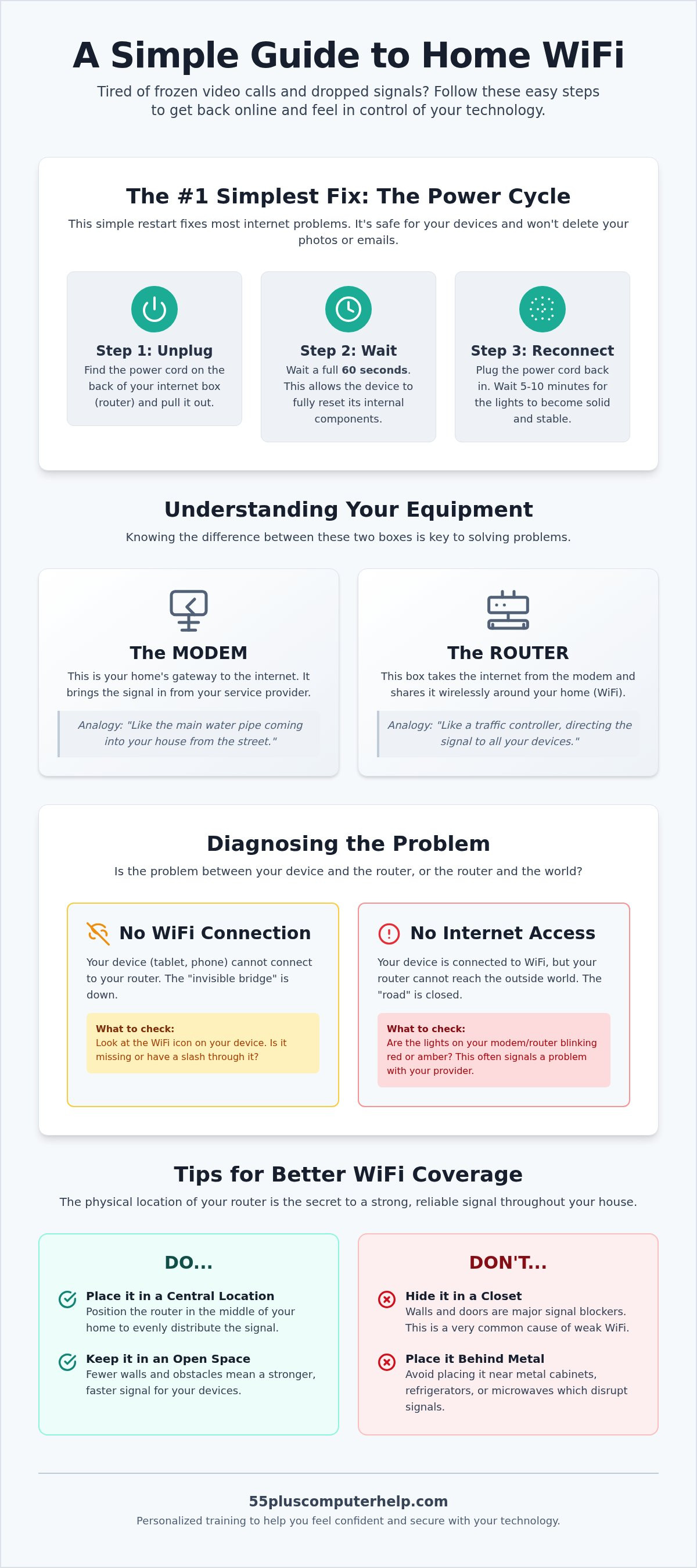
Performing a power cycle is a gentle way to clear out any digital "clutter." Follow these three simple steps to give your equipment a successful start:
- Step 1: Look at the back of your router box. Find the thin black cord that plugs into the wall outlet. Pull this cord out of the back of the device.
- Step 2: Wait for a full 60 seconds. You might want to use a kitchen timer or watch a clock. This time allows the electricity to drain completely so the device can truly rest.
- Step 3: Plug the cord back into the device. You'll see lights begin to flicker. It may take five or ten minutes for the lights to stabilize and stay solid.
The Difference Between "No Internet" and "No WiFi"
To fix a problem, it helps to know where it's coming from. To understand the basics, you might ask, What is WiFi? Think of WiFi as an invisible bridge between your tablet and your router. The "Internet" is the road that leads from the router out to the rest of the world. If your tablet shows full "WiFi bars" but websites won't load, the bridge is fine, but the road might be closed. This is a key distinction when performing home wifi troubleshooting for seniors.
Check your smartphone or tablet first. If you see the fan-shaped icon with all its bars, your device is talking to the router just fine. If that icon has a slash through it or is missing, the "bridge" is broken. Look at the lights on your router box. Solid green lights usually mean everything is healthy. If you see blinking amber or red lights, it means the box is struggling to connect to the outside world. This simple check helps you decide if you can fix it yourself or if you need to call your service provider for help.
Understanding Your Home WiFi Equipment: Modems, Routers, and More
When you look at the technology in your home, you likely see one or two plastic boxes with blinking lights. These devices can look very similar. This makes it hard to know which one is causing trouble. Understanding the names of these boxes is the first step toward independence. It gives you the confidence to handle home wifi troubleshooting for seniors without feeling lost. When you know what each piece does, you can describe problems clearly to others. You won't have to guess which cord to pull or which light to check.
The Modem: Your Connection to the Service Provider
Think of the modem like the main water pipe that enters your house from the street. It is your home's gateway to the outside world. This device brings the internet into your living space through a cable in the wall. The modem is the translator between your internet service provider and your home. It takes the raw data from the street and turns it into something your electronics can use. If the modem stops working, the entire house loses its connection to the world. It is the most vital link in your digital chain.
The Router: Spreading the Signal to Every Room
While the modem brings the internet in, the router shares it. It acts like a traffic controller for your home. It takes the signal from the modem and sends it through the air to your devices. This invisible signal is what we call WiFi. Your router needs to be in a central, open location to work its best. Hiding it in a closet or behind a metal cabinet can weaken the signal significantly. This is often why a tablet works in the kitchen but not in the bedroom. Sometimes, a slow connection isn't a router problem at all. Keeping your devices clean through regular virus and malware removal ensures they can process the signals your router sends.
Many internet providers now give you a single box that handles both jobs. This is often called a gateway. It is a space-saving option that combines the translator and the traffic controller into one unit. Knowing whether you have one box or two is very helpful for home wifi troubleshooting for seniors. If you ever need to call for help, you can tell the technician exactly what you see on your desk. Using the right words makes the process much faster and less stressful. If you ever feel stuck, a patient mentor can visit your home to help you label your equipment. This simple step removes the mystery from your home technology and helps you stay in control.
Solving Common WiFi Frustrations: Slow Speeds and Dropped Signals
It is a common sight in many homes. Your internet works perfectly all week, but the moment the grandkids arrive, everything slows down. You might notice your video calls start to freeze or the sound becomes choppy. This happens because every device in the house is "drinking" from the same straw. When multiple tablets, phones, and computers are active at once, the signal has to stretch further. This is a perfectly normal part of home wifi troubleshooting for seniors. You haven't done anything wrong; the system is simply reaching its current limit.
The "Distance Rule" is another major factor in your connection quality. Think of your router like a person speaking in a loud voice. If you are in the same room, you can hear them perfectly. If you move two rooms away and close the door, their voice becomes muffled. WiFi signals work the same way. They struggle to pass through thick walls, large mirrors, or metal cabinets. If you find "Dead Zones" in your house where the internet never seems to reach, it is likely because something physical is blocking the path. Moving your chair just a few feet closer to the router can often solve the problem instantly.
Surprisingly, even your kitchen appliances can get in the way. Some older microwaves use the same signals as your wireless internet. If your video call drops every time you heat up a snack, your microwave is likely the culprit. Other items like cordless phones or baby monitors can also create digital noise. Keeping your router away from these items helps ensure your signal stays clear and strong.
Why is My Internet So Slow Today?
Sometimes the slowdown comes from inside your own device. Your computer or tablet might be busy downloading a large software update in the background. Since it doesn't always ask for permission, it can feel like the internet is broken. Another common issue is having too many browser tabs open. Each open window uses a little bit of your connection. Closing the pages you aren't using can give your device the boost it needs. These small delays can even interfere with email setup and troubleshooting, making it feel like your messages are stuck.
Managing Your WiFi Password Safely
Your WiFi password is the key that lets your devices talk to the router. If you ever forget it, don't worry. You can usually find the default password on a small sticker located on the side or bottom of your router box. It is often a mix of random letters and numbers. We suggest writing this password down in a physical address book or a dedicated "tech notebook." Keeping a paper copy in a safe place is much more reliable than trying to remember a complex code. Most importantly, remember that no legitimate company will ever call you to ask for your WiFi password. Keeping this information private is a vital part of home wifi troubleshooting for seniors.
Tips for Better Home WiFi Coverage
Once you understand how your equipment works, you can start making small changes to improve your experience. Sometimes, home wifi troubleshooting for seniors is simply a matter of moving a box from one shelf to another. You don't always need to buy expensive new gadgets to get a better signal. Small adjustments to your environment can make a world of difference for your video calls and tablet use. By optimizing where your equipment sits, you ensure that the signal reaches you clearly and consistently.
The Best Spots to Place Your Router
The floor is the worst place for a router. WiFi signals tend to travel outward and downward. If your router is on the carpet, you are sending half of your signal into the foundation of your home. Instead, place the router on a high shelf or a sturdy table. This position helps the signal "shower" down over your living space more effectively. It allows the invisible waves to move over furniture rather than trying to go through it.
You should also avoid hiding the router. While the boxes aren't always pretty, putting them inside a wooden cabinet or behind a large television blocks the signal. Metal objects and large mirrors are especially troublesome. They can reflect or absorb the signals before they ever reach your device. Keeping the area around your router clear is a free and easy way to boost your connection. A clear line of sight between your router and your favorite chair is always the best goal.
Understanding WiFi Extenders vs. Mesh Systems
If you live in a larger home, you might find that the signal doesn't reach every corner. This is common in houses with thick walls or multiple floors. A WiFi extender is a simple tool that plugs into a wall outlet. It picks up the signal from your router and pushes it into one extra room. It is a good choice if you only have one "dead zone" in a specific bedroom or office. It is a cost-effective way to bridge a small gap in your coverage.
For a more modern solution, you might consider a mesh system. Mesh systems use multiple "nodes" placed around the house to create a single, seamless network. These nodes work together like a team to ensure you have a strong connection in every single room. It is much more reliable than an extender for big spaces because it doesn't create separate networks. If you find these options confusing, we can help with internet and wi-fi troubleshooting to find the best fit for your home layout.
Finally, consider the age of your equipment. Most routers are designed to work well for about five years. If your box is older than that, it might not be able to keep up with modern internet speeds or security needs. Technology changes quickly, and an old router can become a bottleneck even if you pay for fast service. If you have moved your router and cleared the area but still face issues, it might be time for an upgrade. Keeping your equipment current ensures you stay connected to your family with the best possible stability. This is a vital part of home wifi troubleshooting for seniors who want to avoid future technical headaches.
How 55 Plus Computer Help Makes Technology Easy and Stress-Free
Dealing with technology should not feel like a heavy chore or a source of constant worry. At 55 Plus Computer Help, we believe that everyone deserves to feel confident and secure with their devices. We provide a safe and supportive environment where you can ask questions without any judgment. Our team understands that home wifi troubleshooting for seniors is about more than just fixing a broken connection. It is about restoring your ability to see your family, send important emails, and stay connected to the world around you. We act as patient mentors who walk beside you, ensuring you feel in control of every step.
We know how frustrating it is to call a typical tech support line only to be met with long wait times and confusing language. Our service is different because we focus on your comfort as much as the technical solution. We believe that home wifi troubleshooting for seniors should be a calm and educational experience. We move at your specific pace and never rush you through a process. Our goal is to transform your technical frustration into a genuine sense of accomplishment and security. You don't have to struggle alone with blinking lights or frozen screens anymore.
Onsite Support vs. Remote Assistance
Our onsite support is the perfect choice for those times when you need a physical hand in your home. If your router is stuck on the floor or hidden behind a heavy cabinet, we can help you move it to a much better spot for your signal. We check your cables, ensure everything is plugged in correctly, and help you find the best location for your devices. This face-to-face help is ideal for optimizing your home coverage and making sure your equipment is set up for success.
If your internet is still partially working, we can also offer remote assistance. This is a wonderful way to receive quick help or personalized lessons from the comfort of your own favorite chair. We can connect to your screen and show you exactly where to click to solve a problem. Our technicians are trained to be patient teachers rather than just "fixers." We want you to understand the "why" behind every step so you feel more independent the next time a small issue arises. We are happy to repeat a step as many times as you need until you feel comfortable.
Ready to Master Your Technology?
Our expertise goes far beyond just fixing a wireless signal. We offer personalized training for smartphones, tablets, and computers. We can assist you with printer setup, software updates, and data backup to keep your precious memories safe. If you are worried about digital threats, we also specialize in virus and malware removal to keep your devices running smoothly. No question is ever too small or too "silly" for our team to answer. We have been helping neighbors just like you since 2014, and we take great pride in our community-oriented approach.
You deserve to use your technology with ease and self-assurance. Whether you need help setting up a new device or want to learn how to video call your grandkids without the screen freezing, we are here for you. Our reliable and mature experts possess the interpersonal skills necessary to teach effectively and kindly. Take the first step toward a stress-free digital life and let us help you stay connected. Schedule your personalized tech support session today!
Stay Connected with Confidence
Staying connected to your friends and family should be a joyful experience rather than a source of stress. You now have the tools to handle basic issues on your own. Remember that a simple sixty-second power cycle can fix most problems. Placing your router in a high, central spot will also keep your signal strong. Learning the basics of home wifi troubleshooting for seniors is a wonderful way to reclaim your digital independence. It helps you feel more secure and capable in your own home.
If you ever find yourself feeling stuck or overwhelmed, you don't have to face it alone. Since 2014, our team has specialized in providing patient support tailored specifically for your needs. We offer both in-home visits and remote assistance to ensure your technology works exactly the way you want it to. Our goal is to empower you with the skills to enjoy your devices every single day. Get Patient, Expert WiFi Help at Home and stay connected with ease. You have the ability to master your home technology, and we are honored to help you along the way.
Frequently Asked Questions
Why does my WiFi work in the living room but not in my bedroom?
Your bedroom is likely too far from the router or has too many walls in between. WiFi signals lose strength as they pass through solid objects like wood, drywall, or glass. If your router is tucked away in the living room, the signal might be too weak by the time it reaches your bed. Moving the router to a more central spot in your home often fixes this frustrating issue.
Do I need to turn my router off every night to save electricity?
You don't need to turn your router off every night to save money. These devices are designed to stay on all the time and use very little electricity. Turning them off daily can actually prevent your service provider from sending important security updates while you sleep. It's better to leave it running and only restart it manually when you notice a specific problem with your connection.
What should I do if my computer says "Connected, no internet"?
This message means your device is talking to your router, but your router isn't getting a signal from the street. You should check the modem to see if the lights are blinking red or amber. It's a common step in home wifi troubleshooting for seniors to ensure the wall cable is tight. If the lights don't turn green after a few minutes, your internet provider might have a service outage.
Is it safe to use my neighbors WiFi if mine goes out?
It's only safe if your neighbor has a password-protected network and shared the key with you directly. Using an "open" or unsecured network from a stranger can put your personal information at risk. Hackers sometimes set up fake networks to see what you're doing online. We always suggest sticking to your own secure home connection for private tasks like banking or checking your email.
How often should I replace my home WiFi router?
You should generally look for a new router every three to five years. Technology changes quickly, and older boxes can't always handle the faster speeds that modern websites and videos require. If you notice your devices are dropping the signal more often, it might be time for an upgrade. A newer model will provide better security and a more reliable connection for your whole house and every device you own.
Why is my internet slower on my tablet than on my computer?
Your tablet is smaller and has a much smaller internal antenna than a desktop computer. This means it can't "catch" the WiFi signal as effectively, especially if you move away from the router. Your computer might also have a more powerful processor that handles web pages faster. This difference is normal and doesn't usually mean your tablet is broken or needs a physical repair.
What is the difference between 2.4GHz and 5GHz WiFi signals?
The 2.4GHz signal is like a slow turtle that can travel a long distance and through thick walls. The 5GHz signal is like a fast rabbit that only works well when you're close to the router. Most modern routers use both at the same time to give you the best experience. If you're in the same room as your router, use the 5GHz option for much faster video streaming.
Can a virus on my computer make my WiFi slow?
A virus or malware can definitely slow down your internet speed. These malicious programs often run in the background and use your connection to send data without your permission. This leaves less room for your video calls or emails to work properly. Regular cleaning is a helpful part of home wifi troubleshooting for seniors to ensure your devices stay fast, responsive, and safe from digital threats.


