
Adults over 60 lost more than $7.7 billion to scams in 2025 according to the FBI. Many of these tricks start with a fake pop-up warning that your device is at risk, leaving you wondering how to update software on computer systems safely. It's completely natural to feel some hesitation when you see a message asking you to install something new. You might worry that clicking the wrong button will break your machine or let a stranger access your files. We understand the frustration you feel when your screen changes or your computer starts running slowly.
Software updates are actually digital health checkups that protect your independence. This guide will help you distinguish real security patches from dangerous scams. You'll learn how to use the built-in tools in Windows 11 or macOS Tahoe to keep your device healthy. We'll show you exactly what to click and what to ignore. This way, you can enjoy your computer with total peace of mind and better performance.
Key Takeaways
- Discover why software updates are essential for your security and learn why they won't slow down your older machine.
- Follow a simple, step-by-step process for how to update software on computer systems running Windows 10 or Windows 11.
- Learn the "Golden Rule" to distinguish legitimate security patches from dangerous scams that ask for your personal information.
- Understand how to keep your web browsers and individual apps current to ensure you stay safe while browsing the internet.
- Find out how patient, one-on-one training can help you build the confidence to manage your technology independently.
Will an Update Break My Computer? Busting Common Software Myths
It's very common to feel a bit of anxiety when a message pops up on your screen. You might worry that clicking "Yes" will change everything or make your favorite programs disappear. Many people believe that updates are just ways for companies to force new, confusing features onto your screen. In reality, most updates are actually silent helpers that work behind the scenes. They fix small problems before you even notice them.
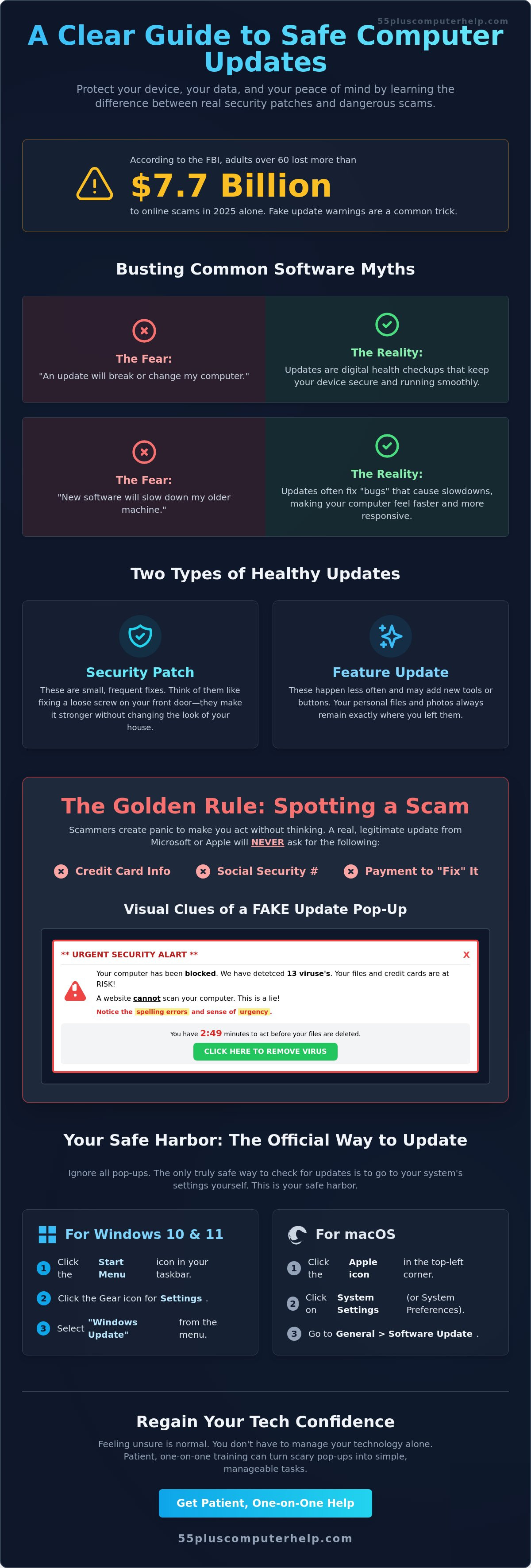
Another common fear is that updates will slow down an older computer. You might think your machine is too tired for new software. However, skipping updates actually makes your computer work harder to stay safe. Some even worry that clicking "Update" is how you get a virus. This is a clever trick scammers use, but legitimate updates from your computer's settings are your best defense. Understanding what is a software update? can help you see them as digital health checkups rather than chores. Learning how to update software on computer systems is often simpler than people think.
The difference between a "Feature Update" and a "Security Patch"
Think of a security patch like fixing a loose screw on your front door. It doesn't change how your house looks or where you keep your keys. It just makes the door stronger. These patches are small and happen often. They don't change your layout or move your icons. Feature updates are different. They happen less often and might add a new button or a new tool to your computer. Even during these bigger changes, your precious files and family photos remain exactly where you left them. Both types of updates are designed to keep your digital life running smoothly.
Why your computer actually feels faster after an update
Have you ever seen the "spinning wheel" that never seems to stop? That often happens because of a "bug." We define a bug as a tiny mistake in the computer's code that makes it get confused. Updates find these mistakes and fix them. When the code is clean, your computer doesn't have to work as hard. This often leads to a faster response time and even better battery life for your laptop. Learning how to update software on computer systems ensures these bugs don't pile up and cause frustration. If you still feel uneasy, remember that you don't have to do this alone. Professional support for Software Installation and Updates can turn a scary pop-up into a simple, manageable task.
Is This Real? Recognizing Legitimate Updates vs. Dangerous Scams
Scammers are becoming more sophisticated every day. They often use clever tricks to make their messages look real. However, you can protect yourself by following one "Golden Rule." A legitimate software update will never ask for your credit card number. It will never ask for your Social Security number or your phone number. If a box appears on your screen and demands payment to "fix" your computer, it is a scam. Real updates are included with your computer's operating system. They are part of the service you already own.
In 2026, real notifications from Windows 11 or macOS Tahoe are designed to be helpful, not scary. They usually appear as a small, quiet box in the corner of your screen. They give you the option to "Restart now" or "Schedule for later." They do not block your entire screen with bright colors or loud sounds. Knowing how to spot fake updates is your first line of defense. If you ever feel unsure, it is best to close the box and check your settings menu directly. This is the most reliable way to learn how to update software on computer systems without any risk.
Visual clues of a fake update
Fake updates rely on a sense of urgency. They want you to panic so you don't think clearly. You might see flashing red lights or a countdown timer saying you have "3 minutes to save your files." You might also notice spelling errors or logos that look slightly blurry. A very important thing to remember is that a website can never "scan" your computer for viruses. A website is just a page you are visiting. It cannot see what is happening inside your machine. If a website claims you have a virus, it is lying to you.
Where to find the "Official" update buttons
The safest way to check for updates is to go to the source. For Windows users, click the Start Menu and look for the Gear icon labeled "Settings." From there, you can select "Windows Update." For Mac users, click the Apple icon in the top left corner and select "System Settings." This is your safe harbor. When you use these official menus, you know the information is coming directly from the people who built your computer. Sticking to these official sources makes virus and malware removal much easier because you aren't letting the bad guys in. If you want a patient mentor to walk you through this process, we offer personalized support for Software Installation and Updates to ensure your computer stays secure.
Step-by-Step: How to Update Your Computer Safely
Updating your machine is a simple process once you know the path. Before you begin, please ensure your laptop is plugged into a power outlet. Updates can sometimes take a little while. You don't want your battery to run out in the middle of a task. This simple step prevents many common errors. Experts often emphasize the importance of regular updates to keep your system running at its best. Once you are plugged in, you are ready to learn how to update software on computer systems like yours.
After the download finishes, your computer might ask to restart. This is the most important part. Your screen might go black or show a logo for several minutes. Do not panic. This is perfectly normal. The computer is simply organizing the new files. It's like a library putting books back on the shelves. Just let it finish its work. Avoid pressing the power button during this time. Your computer will tell you when it's ready for you to sign back in.
Updating a Windows PC
Whether you use Windows 10 or the newer Windows 11, the steps are very similar.
- Step 1: Click the small window icon in the bottom corner of your screen. This is your Start button.
- Step 2: Type the word "Update" using your keyboard. This will automatically find the right setting for you.
- Step 3: Click "Check for Updates." You will see a blue bar or a spinning circle. Wait for the computer to finish its search.
Updating an Apple Mac
Apple computers follow a slightly different path.
- Step 1: Click the small Apple icon in the very top left corner of your screen.
- Step 2: Select "System Settings" from the list. On older Macs, this might say "System Preferences."
- Step 3: Look for the "Software Update" icon. It looks like a gray gear. Click it to see if your Mac is ready for a refresh.
What to do if it says "Update Failed"
Sometimes things don't go perfectly. An update might fail if your Wi-Fi is weak or if your computer is almost full. If you see an error, try the classic trick. Turn your computer off completely and then turn it back on. This often clears out small glitches. If you still feel stuck or the screen stays black for too long, don't worry. Specialized computer help for seniors is always available to get you back on track. We can help you clear up space or fix connection issues so your updates can finish safely.
Don’t Forget the Rest: Updating Browsers and Individual Apps
Your main computer system is the foundation of your digital life. However, the specific programs you use every day also need regular care. Think of your computer like a house. Updating Windows or macOS is like fixing the roof. Updating your apps is like making sure the locks on your windows work. When you learn how to update software on computer applications, you create a complete shield of protection around your personal information. This process is usually very quick. It often doesn't even require a full restart of your machine.
Keeping your web browser safe
Most of your time is likely spent in a web browser. Whether you use Google Chrome, Microsoft Edge, or Safari, these programs are your window to the internet. They handle your emails, your social media, and your online banking. Keeping them current is the best way to keep hackers away from your private data. In Chrome or Edge, look for the "Three Dots" menu in the top right corner. If an update is ready, you will see a colored circle or the word "Update." Understanding why software updates are important for seniors can help you feel more confident about clicking that button.
App Store updates vs. Website downloads
The safest way to get new software is through the official App Store on your device. Using the official store is the best way to learn how to update software on computer programs without risking a virus.
- Open the Microsoft Store or Apple App Store from your taskbar.
- Click on the "Library" or "Updates" icon.
- Select "Get Updates" or "Update All" to refresh your programs.
You can also make this process even easier by turning on automatic updates in your settings. This allows your computer to download and install improvements quietly in the background. It even helps with external devices like your printer. If your printer suddenly stops working, an outdated piece of software is often the culprit. If you find these steps confusing, we can help. Our team provides patient Software Installation and Updates support to make sure every part of your computer is running perfectly.
Regaining Your Tech Confidence with Patient Support
Technology should serve you, not the other way around. It's completely normal to feel some hesitation when a new message appears on your screen. You have spent years building your life and your home. You deserve to feel just as comfortable in your digital space. Learning how to update software on computer systems is a skill that grows with practice. Once you understand the "why" behind the buttons, the fear of breaking something starts to fade away. You can begin to view your computer as a helpful tool for staying connected with family and friends.
Our goal is to turn those scary pop-ups into simple, manageable tasks. We believe that everyone can master their technology with the right guidance. You don't need to be a scientist to keep your machine safe and fast. You just need a clear path and a bit of patience. By taking these small steps, you are protecting your independence and your privacy. You are also ensuring that your computer stays reliable for years to come. A clean, updated computer is a joy to use. It opens up a world of information and entertainment without the frustration of slow performance.
Why one-on-one help makes a difference
There is a special benefit to learning on your own computer in the comfort of your own home. You don't have to worry about carrying your heavy machine to a cold, busy store. We sit right beside you and move at your pace. We don't use complicated tech-speak or industry jargon. Instead, we translate everything into plain English that makes sense to you. We can even help you build a customized checklist for your specific devices. This list acts as a friendly reminder for the next time you see an update alert. Having a patient mentor makes the process feel like a conversation rather than a classroom lecture.
Getting started today
We encourage you to try checking for updates one more time using the steps we discussed. You might find that it feels a little more familiar now. If you still feel a bit of anxiety, that is perfectly okay. You can reach out for a friendly, no-pressure session whenever you are ready. We are here to support your journey toward tech confidence. Whether you need help with Software Installation and Updates or a full Computer Setup, we are happy to help. You can Schedule a patient technology lesson with 55 Plus Computer Help today to get started. We look forward to helping you feel secure and empowered at your desk.
Take Control of Your Digital World Today
You now have the tools to keep your machine running smoothly and safely. Remember that real updates never ask for your credit card or phone number. They are simply helpful checkups for your system. By knowing how to update software on computer programs and browsers, you protect your personal information from modern scams. You can do this. You can browse the internet with a new sense of security and confidence.
Since 2014, we have specialized in helping adults aged 55 and older master their technology. We believe in empowering your digital independence through patient, one-on-one training. If you still feel a bit uneasy, you don't have to manage this alone. Our friendly mentors are ready to visit your home and walk you through every step. Get Patient, In-Home Tech Support for Your Computer Today and enjoy your technology without the stress. You've worked hard for your independence. Your computer should support your lifestyle every single day.
Frequently Asked Questions
How long does a typical computer update take?
A typical update usually takes between 15 and 45 minutes to complete. The exact time depends on your internet speed and how many changes the computer needs to make. Smaller security patches might finish in just a few minutes. Larger feature updates, which happen less often, can take over an hour. It is best to start an update when you don't need the machine for a little while.
Will I lose my files or photos if I update my software?
You will not lose your precious photos, documents, or emails during a standard update. Software updates are designed to improve the system without touching your personal data. However, it is always a smart habit to keep a backup of your files. We offer Data Backup and Recovery services to give you extra peace of mind before you learn how to update software on computer systems.
Can I still use my computer while it is updating?
You can continue to use your computer while the update is downloading in the background. You might notice your internet feels a bit slower during this time. Once the download finishes, the computer will ask to restart. During the restart phase, the screen will be busy and you won't be able to use it. Knowing how to update software on computer applications means knowing when to take a short break.
What is the difference between Windows Update and a "Driver" update?
Windows Update focuses on the main operating system and its security. A driver update is a specific piece of software that helps your hardware talk to your computer. For example, a printer driver ensures your machine knows how to send a document to the printer. We can help with Printer Setup and driver updates if your external devices are not working correctly.
Why does my computer keep asking me to update every week?
Computers ask for updates frequently because new security threats appear every day. Software companies release weekly patches to fix these hidden holes and keep your information safe. While it might feel like a nuisance, these frequent checks are a sign that the company is working hard to protect you. It is much better to have a few small updates than one giant, confusing change.
Is it safe to leave my computer on overnight to finish an update?
It is perfectly safe and often very helpful to leave your computer on overnight for updates. Many people prefer this because the computer can restart and finish its work while you are sleeping. Just make sure your laptop is plugged into a power outlet so the battery doesn't run out. When you wake up, your machine will be fresh, secure, and ready for your morning tasks.
What should I do if my computer screen goes black during an update?
If your screen goes black, the best thing to do is wait and be patient. Computers often turn off the display or show a dark screen while they are moving important files. Give it at least 30 minutes to finish its task. If the screen stays black for hours, you might need professional help. We provide patient support for Software Installation and Updates to handle these tricky moments safely.
How do I know if my computer is too old to be updated?
Your computer will usually show a clear message if it can no longer support a specific version of software. For example, Windows 10 support officially ended on October 14, 2025. If your machine is more than seven or eight years old, it might struggle with the latest features. Most older computers can still receive security patches for a long time. We can help you check your system's age during a session.


